Connecting your PlayStation 4 to a personal computer opens up a world of flexibility for gamers who want to enjoy their console library without occupying the living room television. Whether you prefer streaming your gameplay over a local network or utilizing direct hardware configurations, modern utilities make the integration process smoother than ever. By understanding the available options, you can easily transform your computer monitor into a dedicated gaming hub.
Streaming Console Gameplay via Remote Play
The most accessible method to bridge your devices is through Sony's official streaming platform, which projects your console's output directly onto your computer screen. To get started, you simply need to download the official installer on your computer and enable the remote access option within your console's system settings menu. This application relies on your home network configuration to send data back and forth dynamically.
For the most stable performance during intense action sequences, connecting both devices using wired Ethernet cables is highly recommended over standard wireless frequencies. If you must use wireless connections, switching your router configuration to a 5 GHz band will significantly minimize latent data delivery. This software-driven setup processes everything on the console hardware itself, ensuring your desktop components face zero additional operational strain.
Direct Hardware Setup Using Capture Cards
For enthusiasts looking to record their adventures or achieve near-zero visual delay, a dedicated external capture card provides an excellent hardware solution. This hardware interceptor sits between your console's video output port and your computer display to translate incoming visual signals into manageable digital files. You will need to plug your console into the input port of the card and run a secondary connection out to your display monitor.
Before launching your preferred broadcasting utility, navigating to your console's system configuration menu to disable HDCP security management is absolutely crucial. Leaving this digital rights feature active will result in a completely blank screen because capture devices block protected entertainment streaming signals by default. Once adjusted, you can enjoy crisp visual fidelity while managing custom audio overlays natively through desktop software interfaces.
Configuring Input Controllers for Desktop Environments
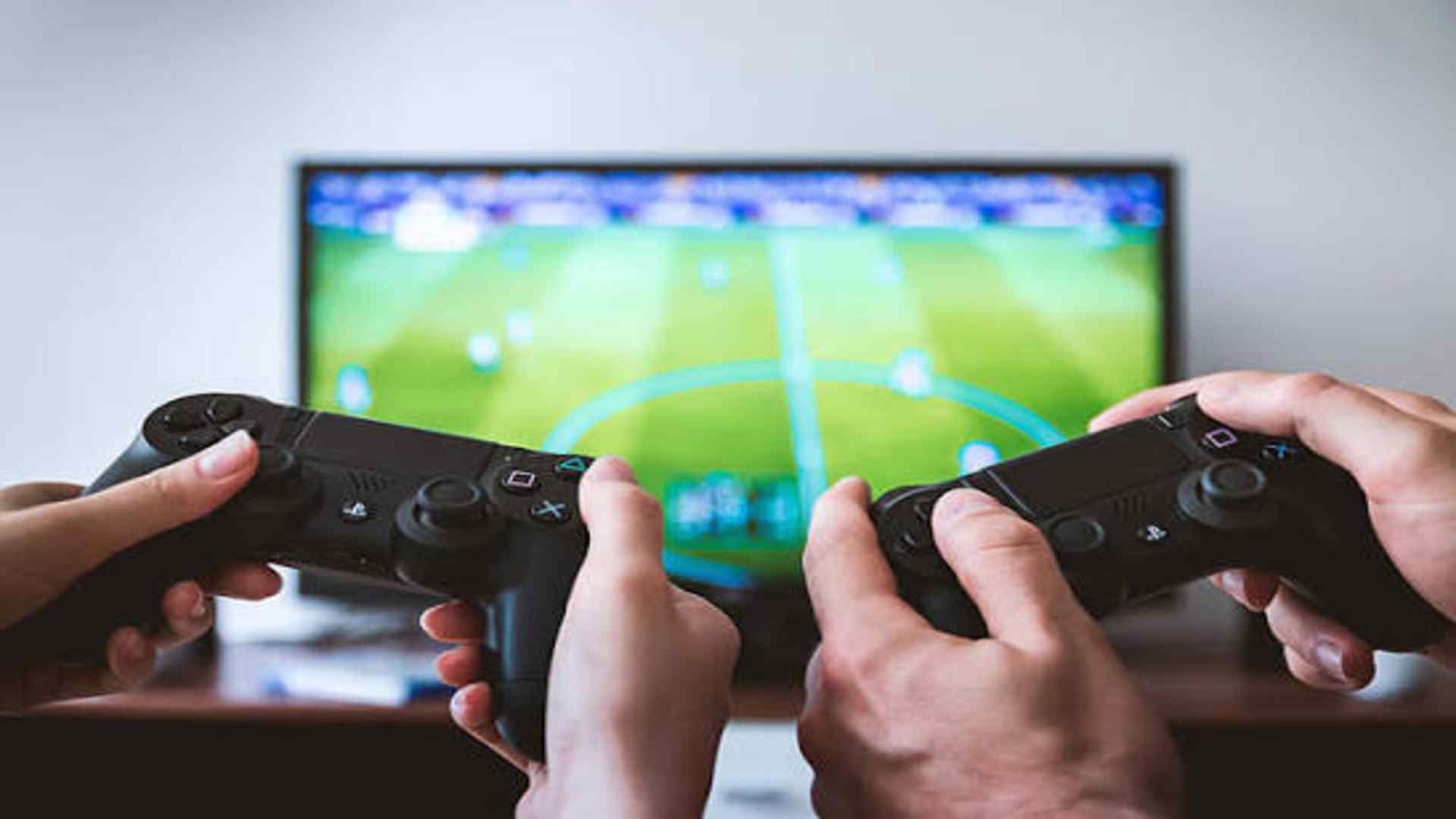
Achieving perfect command reactivity requires properly syncing your DualShock controller with the desktop operating platform. You can achieve a reliable connection by linking the game pad directly using a micro-USB data cable to ensure constant battery power and minimal input delay. Alternatively, pressing the central button combination allows the accessory to enter pairing mode for seamless wireless synchronization.
While certain modern ecosystems feature native hardware detection, older software frameworks occasionally struggle to interpret console mapping signals accurately. Utilizing secondary calibration interfaces allows players to map their layout seamlessly or customize tracking thresholds for specific simulation experiences. Ensuring your configuration profiles match your preference prevents unexpected command drops during crucial moments.
Optimizing Performance and Network Stability
Maintaining high-definition streaming outputs requires evaluating your internal network bandwidth metrics before launching long sessions. Closing data-heavy digital downloads or background media players running elsewhere on your network prevents sudden synchronization drops. Adjusting your application's frame rate parameters down to standard benchmarks can also stabilize your visual presentation on older computer processors.
Regularly updating your console firmware alongside your computer graphic controllers ensures maximum software compatibility over time. If performance hitching persists despite network adjustments, resetting your home routing hardware frequently clears built-up diagnostic cache issues instantly. This straightforward maintenance loop preserves data integrity for an optimal local gaming environment.